By Raghavendra Prasad Meeniga | Vice President of Technology
AI assistants are more useful when they can work with the services people already use, rather than only explain how to use them. Remote computer management is one practical example.
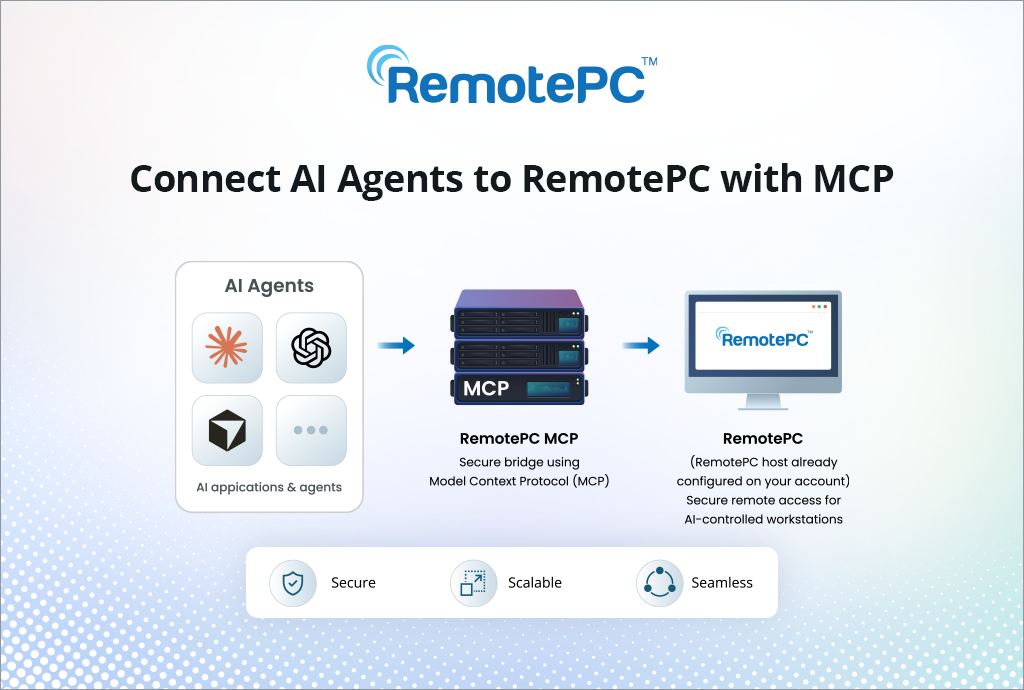
RemotePC™ MCP connects compatible AI applications with your existing RemotePC account. Through an authorized connection, you can use natural-language requests to review remote computers and perform selected management tasks.
Whether you need to understand an on-screen error, check if an office computer is online, or coordinate a planned restart, RemotePC MCP brings these requests into your AI-assisted workflow.
What Is MCP?
Model Context Protocol, or MCP, is an open standard that connects AI applications with external services, data sources, and tools. A compatible application can discover the tools a service provides and request an operation through a common interface.
With RemotePC MCP, those tools connect your AI assistant to supported RemotePC capabilities. The assistant works within the access you authorize, rather than requiring a separate custom integration for each AI application.
What RemotePC MCP Enables
The available RemotePC MCP tools support several everyday workflows:
- Check computers and account details. Review registered computers, online status, recently accessed devices, groups, sub-users, and invoices.
- Review screens and open windows. Capture the desktop, a monitor, or a specific window, and list open application windows.
- Communicate with remote users. Send an on-screen message about an upcoming operation.
- Perform supported maintenance. Schedule or cancel computer restarts and initiate RemotePC application updates, subject to permissions and host restrictions.
- Generate connection links. Obtain a RemotePC connection URL for a selected computer.
Secure OAuth-Based Authorization
RemotePC MCP uses OAuth-based authorization. Customers sign in directly with RemotePC and complete two-factor authentication when enabled. RemotePC login credentials are not shared with the connected AI client.
During authorization, customers choose View Only or Full Control. View Only supports information retrieval and observation. Full Control enables the available action-based tools, subject to RemotePC host-level restrictions.
Sessions can be configured from 12 hours to 30 days and expire automatically. Continued access requires reauthorization. Customers can also revoke a connection through My Account > MCP Connections.
Choose the permissions needed for your task and review the authorization and session controls before connecting an AI application.
Use RemotePC with Claude, Cursor, ChatGPT, Grok, and Codex
RemotePC MCP connects with compatible AI applications such as Claude, Cursor, ChatGPT, Grok, and Codex, as well as other clients that support the required remote MCP connection and authorization flow.
This allows teams and individuals to access RemotePC capabilities from the AI-assisted tools and environments they already use.
IT teams can review computer availability and screenshots while discussing a support issue. Managed service providers can check configured client computers and coordinate restarts or RemotePC application updates. Remote workers and families can ask an assistant to explain an unfamiliar pop-up on an authorized computer.
Developers using a compatible coding assistant can check whether a configured test computer is online or review a screenshot without leaving their AI-assisted development environment. These requests use the available RemotePC tools; they do not require general desktop control or command execution.
Because MCP is an open standard, organizations can choose among compatible AI applications rather than build a separate proprietary integration for each one.
Practical Tasks, Natural-Language Requests
Start with a clear request and the appropriate permission level. For example:
Check availability: “Show me which computers in my RemotePC account are online.”
Understand an on-screen message: “Take a screenshot of Reception-PC and explain any visible error message.”
Review open windows: “List the open application windows on Finance-Laptop.”
Coordinate a restart: “Notify the person using Lobby-Kiosk that a restart is planned, then schedule it with a warning.”
Update RemotePC: “Check Office-PC for a RemotePC update and install it if updates are permitted.”
These examples focus on observation and specific management operations. An assistant can help interpret what it sees and request a supported action; the outcome still depends on the computer’s availability, permissions, and applicable host restrictions.
No Custom RemotePC Integration Required
RemotePC hosts the MCP service, so customers do not need to deploy or maintain a separate MCP server. A compatible AI application connects to the RemotePC endpoint and uses the available tools after authorization.
One connection covers the computers already configured in the authorized RemotePC account. Device-level operations require the relevant computer to have RemotePC running and to be online.
Getting Started
- Add RemotePC MCP to a compatible AI application using the endpoint below.
- Sign in to RemotePC through the authorization page.
- Select permissions and session duration appropriate for your workflow, then authorize the connection.
- Make a natural-language request such as asking the assistant to list your RemotePC computers.
RemotePC MCP endpoint: https://mcp.remotepc.com/mcp
Bring Remote Computer Management into Your AI Workflow
RemotePC MCP adds another way to work with your remote computers. Describe a task in your preferred MCP-compatible AI assistant and use the available RemotePC tools within the permissions you authorize.
Explore RemotePC MCP and the configuration guides above to get started. For more information about supported tools, permissions, and session controls, visit the RemotePC MCP FAQ.